
Conducting Subsequent Reviews
Once a relationship is active, Proofdesk continues to keep it on your radar. Every active relationship has a Scheduled Review Date, based on your firm’s Risk Classification Policy. When that date comes around, or if something changes sooner, you’ll create a new Review to reassess the relationship.
This section explains how to manage your ongoing reviews, handle trigger events, and close relationships when needed.
Seeing what's due for review
Your Relationships list includes a column showing the Next Review Date for each active relationship. You can click on the column heading to sort by date making it easy to see which reviews are coming up next.
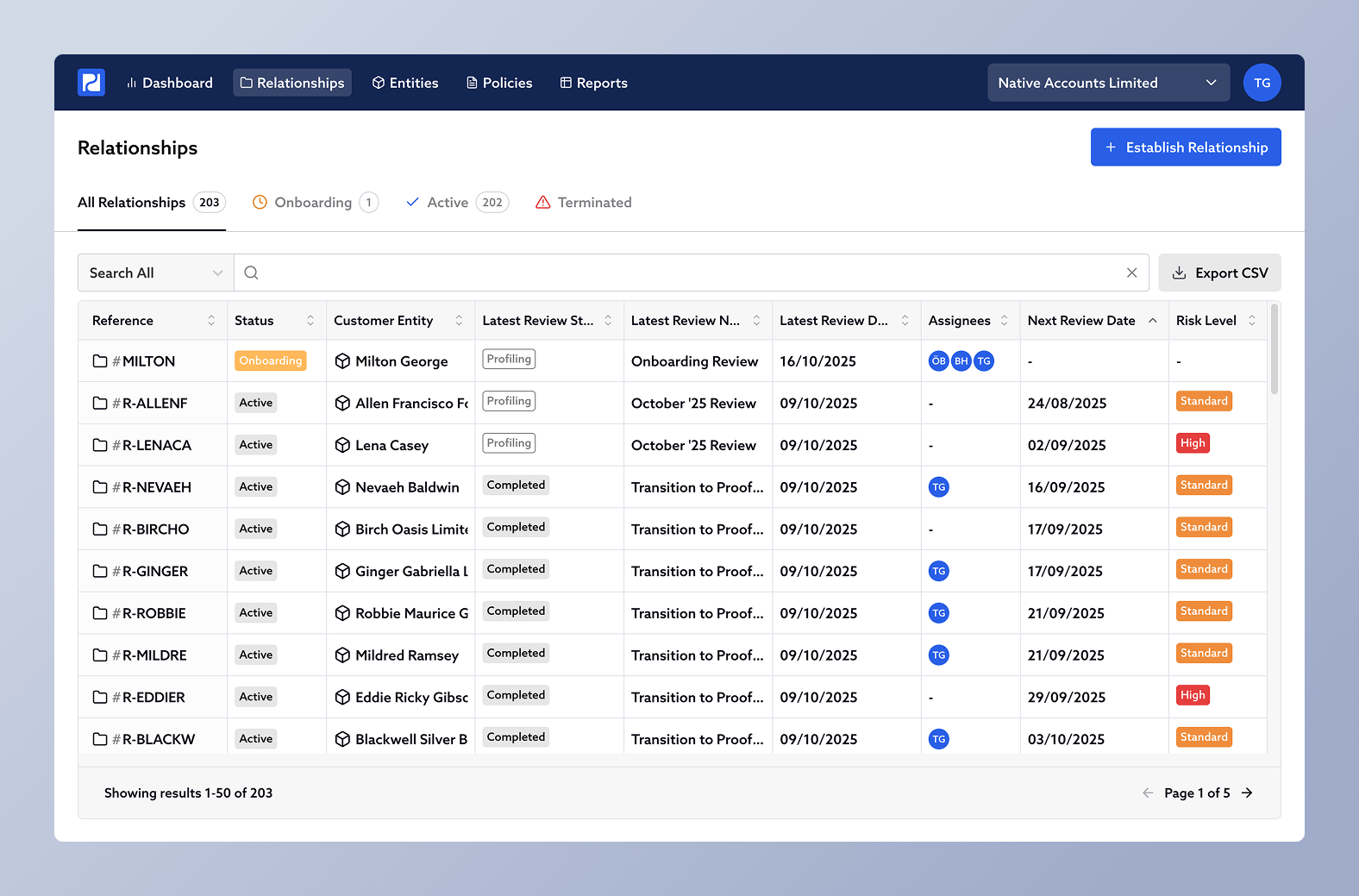
The review date is set automatically from your Risk Classification Policy. For example, every 12 months for Standard risk and every 6 months for High risk customers.
Starting a subsequent review
You can start a new review at any time, as long as the most recent review is complete. You don’t have to wait for the next review date, many firms also start new reviews following trigger events such as a change in ownership, a new service being added, or an updated risk factor.
To start a new review:
Open the relationship.
Click the + Start Review button in the right-hand sidebar.
Choose Initiate New Review.
You’ll see a popup asking you to name the new review.
A new review is essentially a new checkpoint in the relationship. It snapshots the state of the relationship when the review is completed, so you can always refer back to how things looked during previous reviews.
Working through the new review
The process is the same as detailed in the section Starting the First Review. The difference is that you’re now reviewing information that has been partially reviewed before, so much of the work will be about confirming accuracy of what’s changed.
Aborting an in-progress review
If you start a new review by mistake or decide not to proceed, you can cancel it at any time. Click the Cancel Review button at the bottom of the approval form in the Review Workspace and select Cancel Review. The review will be removed, and the previous one remains.
Declining or terminating a relationship
You can end a relationship at any point whether it’s during onboarding, after approval, or years down the line. Click the More Actions button at the bottom of the right-hand sidebar in the relationship page and select Terminate Relationship.
This will create a Termination Form for you to complete. The form appears in the right-hand relationship navigator bar as a new form, creating a permanent record in the relationship’s history.
The Termination Form includes:
Termination Date
Reason for termination (e.g. Business Relationship Concluded, Money Laundering, Terrorism Financing, Sanctions, Other)
Optional custom fields depending on your organisation's configuration.
Depending on when and why the relationship was terminated, Proofdesk applies one of four statuses:
Status | Timing | Reason |
|---|---|---|
Not Proceeding | During onboarding | Concluded or Other |
Declined | During onboarding | ML, TF or Sanctions |
Closed | After onboarding | Concluded or Other |
Terminated | After onboarding | ML, TF or Sanctions |
Once a relationship is terminated, it no longer has a scheduled review date but all records remain securely stored for reporting purposes.
The relationship timeline
Each review (including termination forms) also appears as an entry in the relationship’s History section in the left-hand sidebar. This list shows the full lifecycle from onboarding, through periodic reviews, to closure. This complete history is one of the key strengths of Proofdesk. It means you can always demonstrate what was known about a customer, who approved it, and when decisions were made.