
Running a screening case
ComplyAdvantage and World-Check One both screen natural persons for sanctions and PEP exposure, and bring the outcome back into Proofdesk. The steps in this guide are the same whichever provider your firm uses. If you haven't connected the provider yet, start with Configure ComplyAdvantage or Configure WorldCheck .
Screening always happens on a natural person entity, not on a company, trust, partnership, or foundation, and not on the relationship itself. If you want to screen a customer relationship, open each natural person on it - the customer, where they are an individual, and anyone else you've added, such as a director or beneficial owner - and screen them one by one.
Starting a screening case
Open the natural person you want to screen and go to the Sources tab. You'll see a card for each screening provider your organisation has switched on, with a Create or Connect Case button.
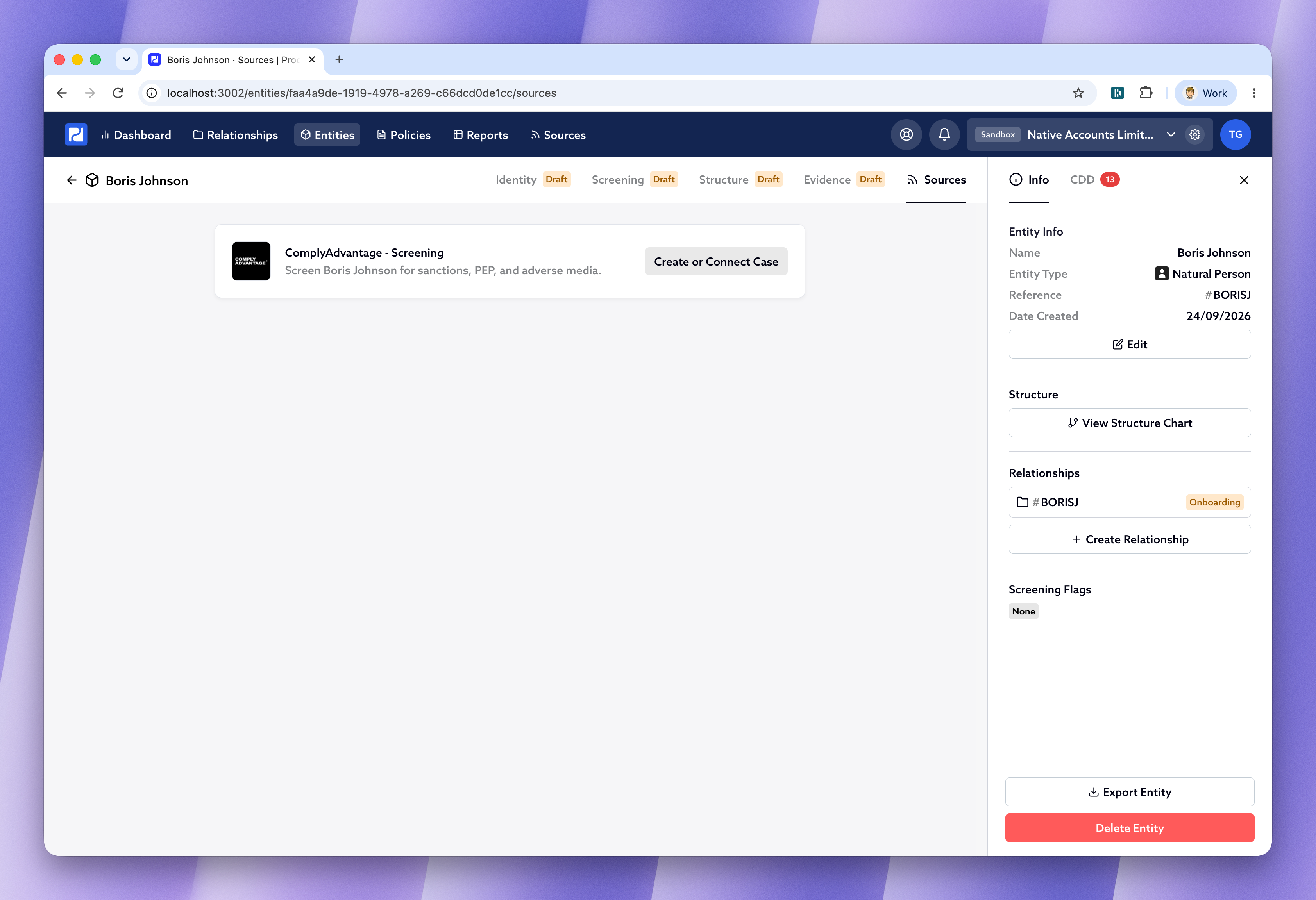
Clicking it gives you two options:
-
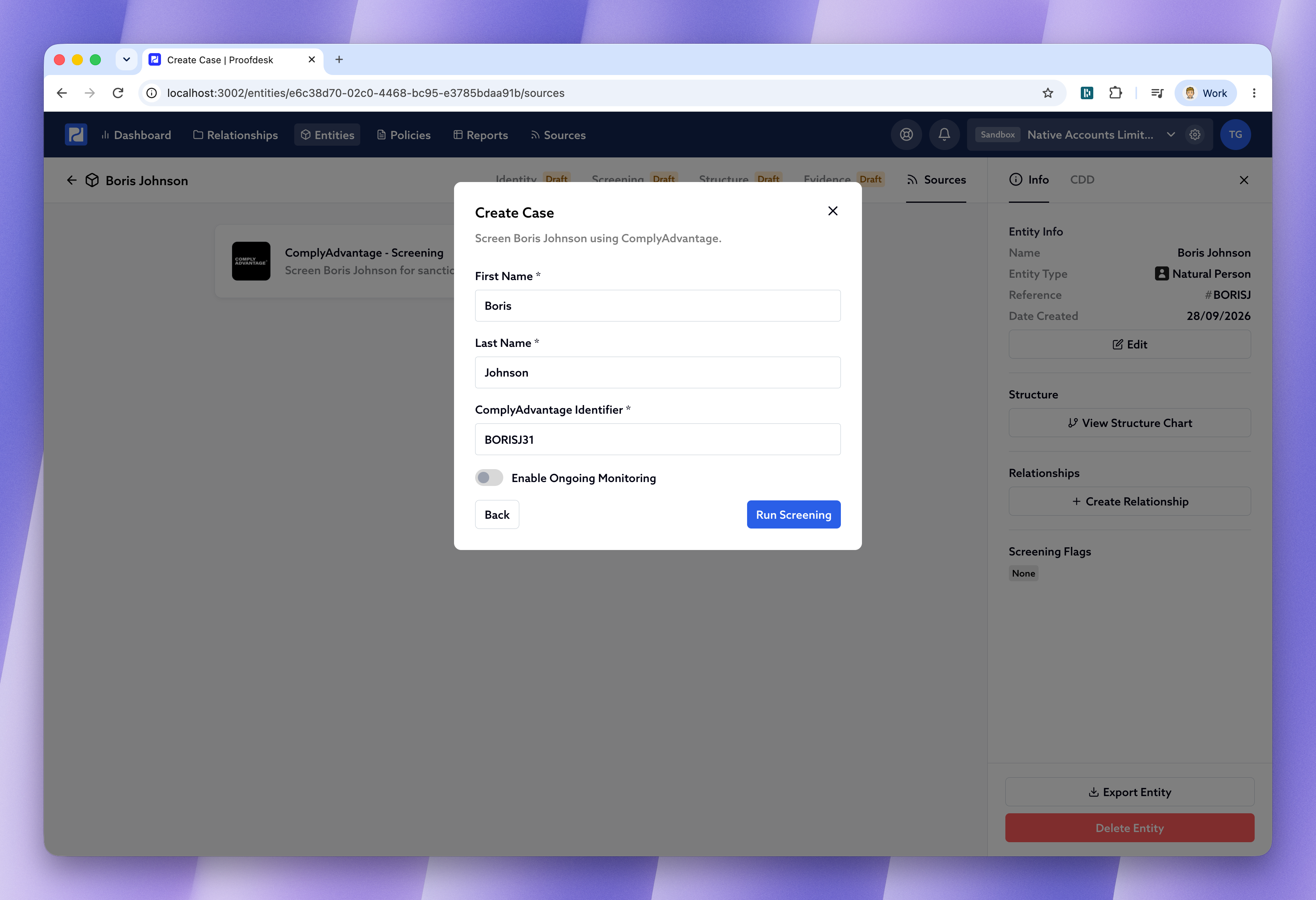
Create Case - starts a new screening in the provider for this person. Use this if you haven't screened them there before.
-
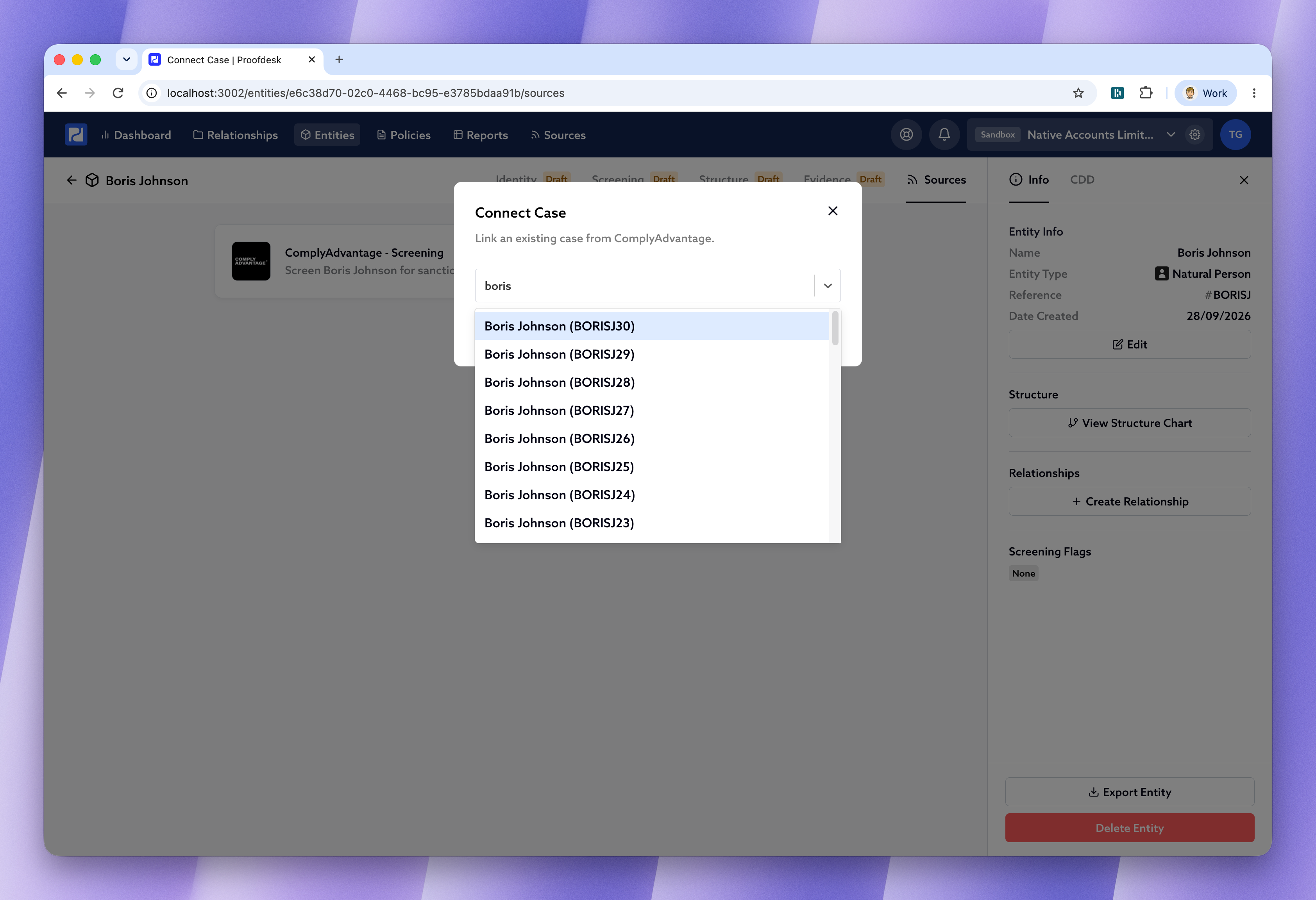
Connect Case - links a screening that already exists in the provider, instead of starting a new one.
If you choose Create Case , Proofdesk fills in the person's first and last name from the entity, and suggests an identifier based on their Proofdesk reference. ComplyAdvantage calls this the ComplyAdvantage Identifier . World-Check One calls it the World-Check One Case ID . If that value is already in use in the provider, Proofdesk adds a number onto the end to keep it unique. You can change it before you continue.
You can also toggle Enable Ongoing Monitoring for this case. That doesn't change your organisation's default - it only decides whether this one case is monitored going forward. When you're ready, click Run Screening .
If you choose Connect Case instead, the way you find the existing screening depends on the provider. In ComplyAdvantage, search for the case by name and select it. In World-Check One, enter the World-Check One Case ID and click Connect Case .
Reviewing potential matches
Once the provider has run the screening, the case moves to Needs Action and a notification appears next to Sources in the top navigation. If there are potential matches, you'll see a list of them.
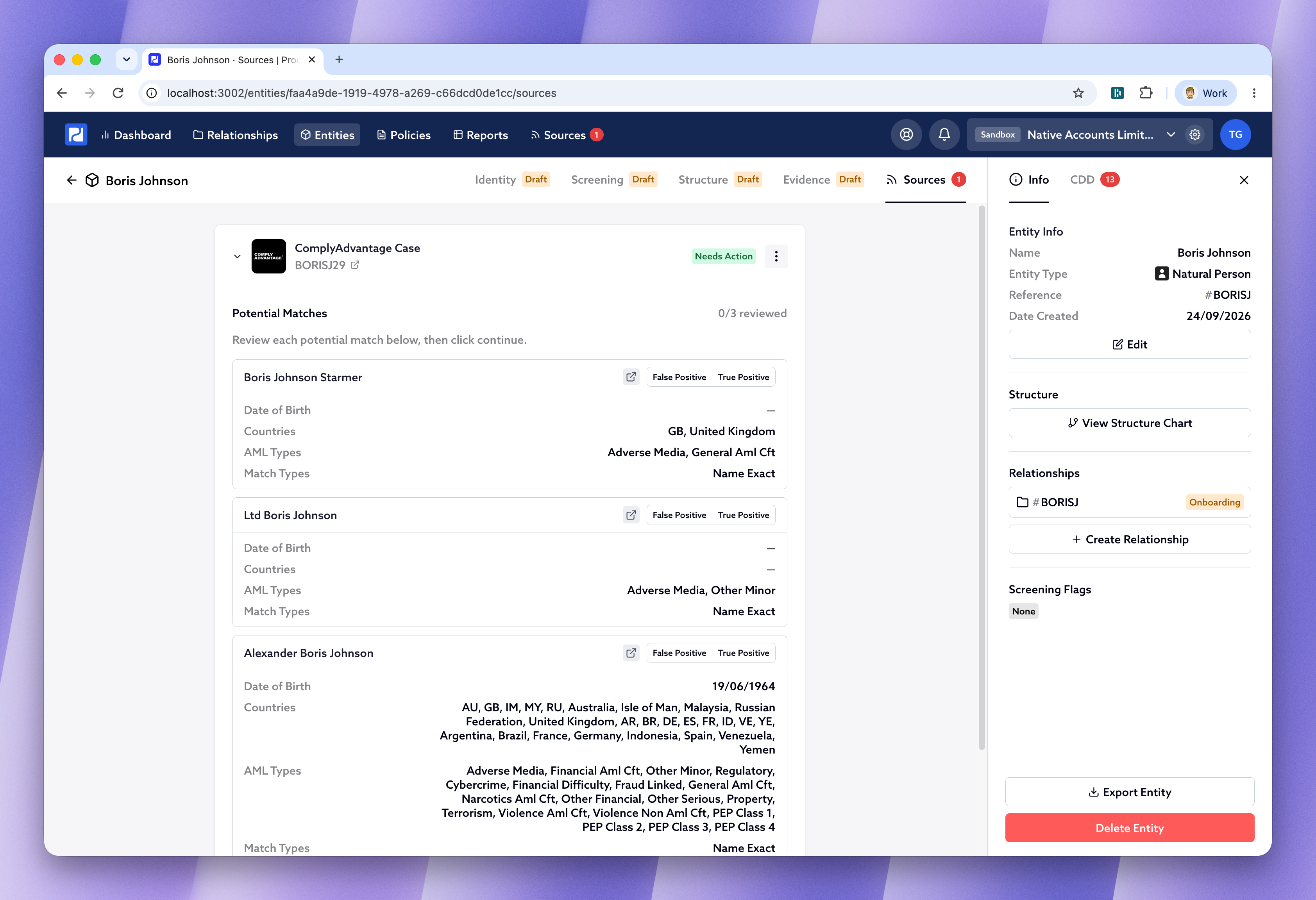
Each match shows the key details the provider found, enough for you to tell whether it's a genuine hit. For each one, mark it False Positive or True Positive , then click Continue once you've been through all of them. On ComplyAdvantage cases, the link icon on a match opens that match in ComplyAdvantage if you need more detail.
You don't have to do this in Proofdesk. If you mark matches as false or true positives in the provider instead, switching back to the Proofdesk tab picks up those decisions.
If the provider doesn't find any potential matches, this step is skipped and you're taken straight to the finished report. The report tells you how many potential matches there were.
Bringing the results into Proofdesk
Once every match has been reviewed, Proofdesk shows the outcome on the case - whether the person is flagged for PEP, sanctions, or adverse media - together with the screening report.
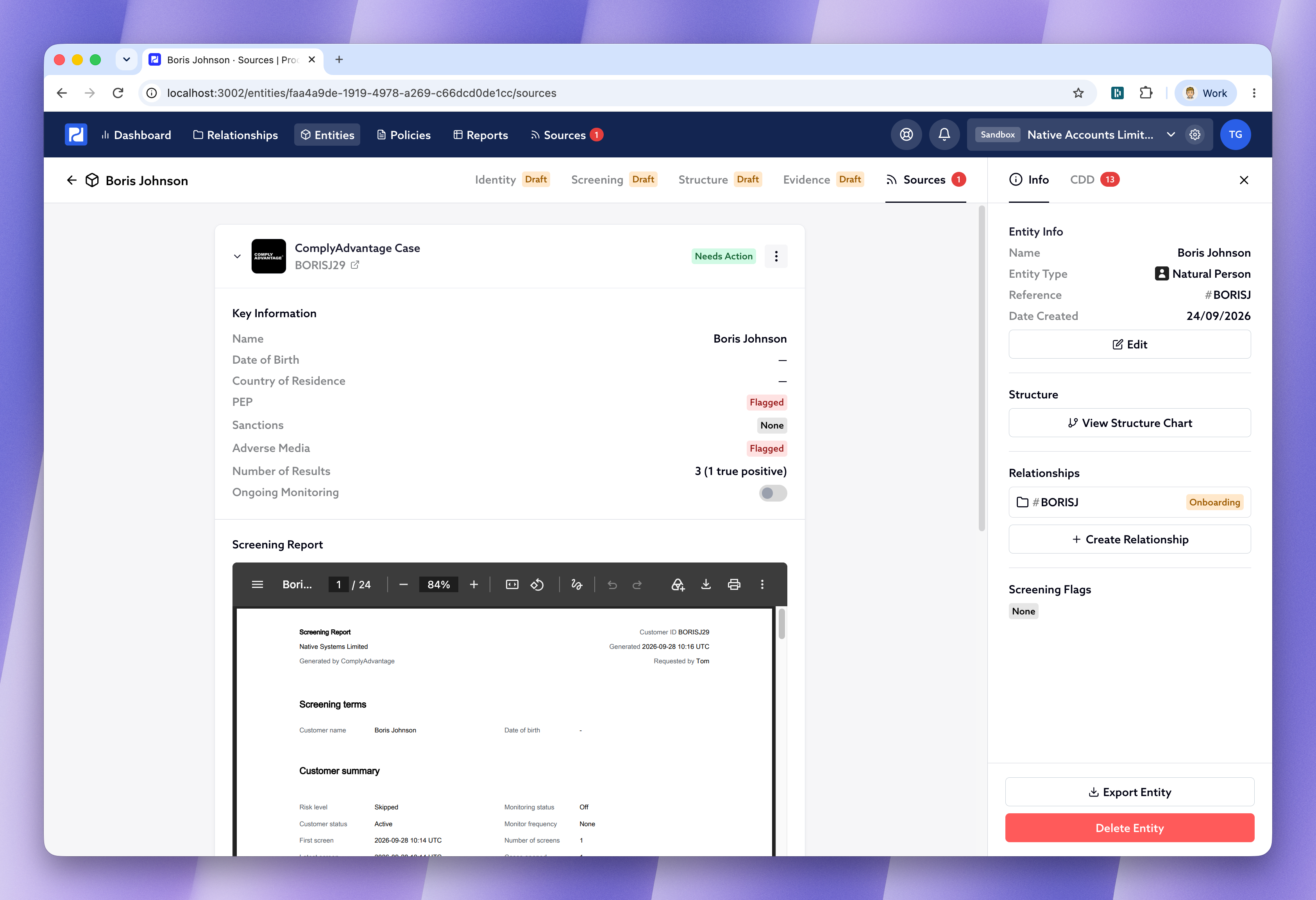
The Sources tab holds the raw case from the provider. The entity's Screening form is where you record, in your own words, the outcome of the screening you carried out. Click Copy to Entity Forms to bring the results into that Screening form and, if you want, into Evidence as well.
That opens Proposed Changes , showing exactly what would change on the Screening form. Underneath is the option to copy the screening report into Evidence. Untick anything you don't want copied, or click into a field to change it yourself before confirming - for example, if you'd rather record someone as a Domestic PEP than a Foreign one.
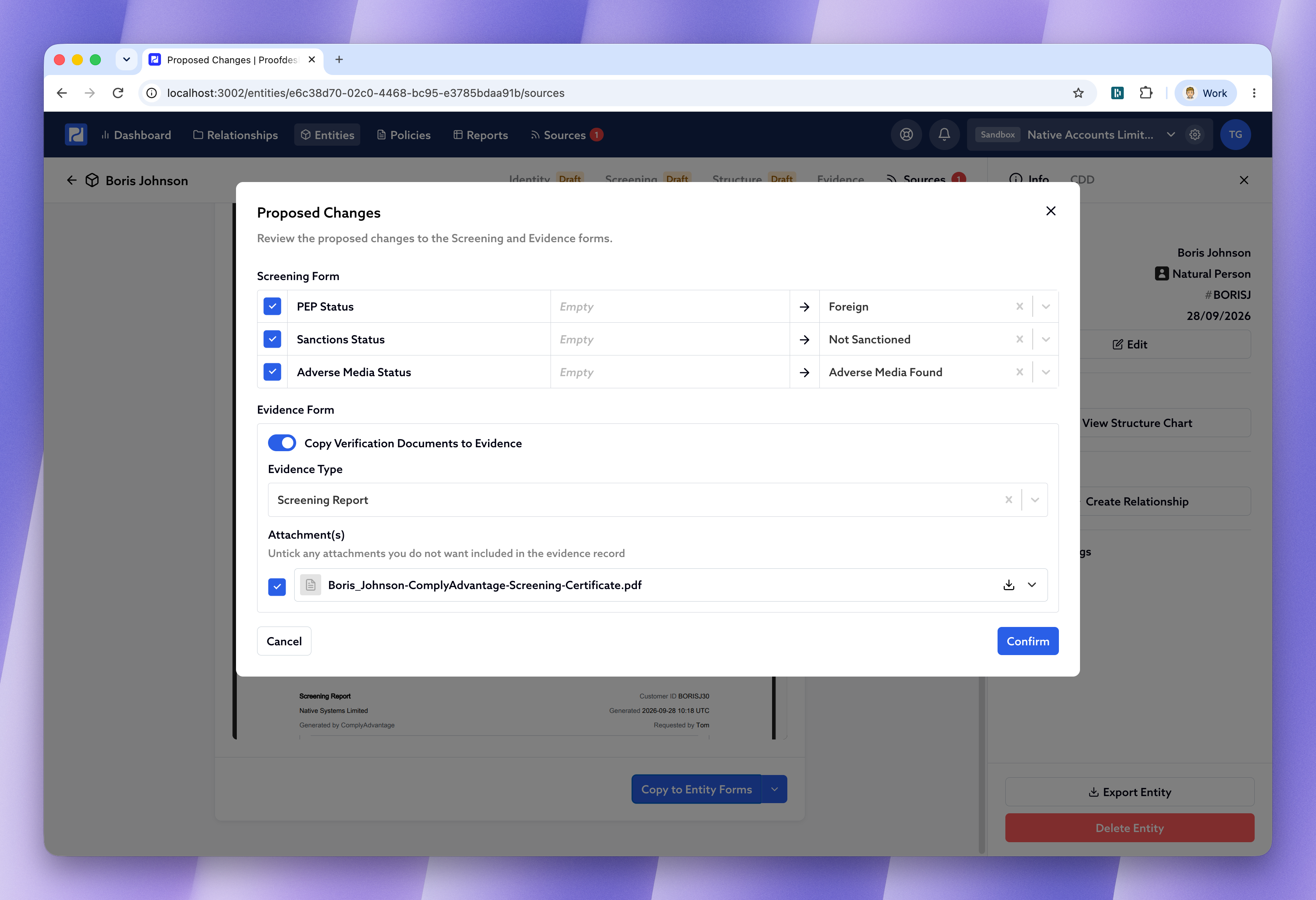
Click Confirm and Proofdesk tells you what's been updated.
If the Screening and Evidence forms are already up to date, you don't need to copy anything across again. Use the small arrow next to Copy to Entity Forms and choose Skip and Mark as Completed .
Keeping track of your screenings
Every screening case you create or connect also appears under Sources in the top navigation, alongside any other data sources you use. That's one place to see what's outstanding, whichever person it belongs to.
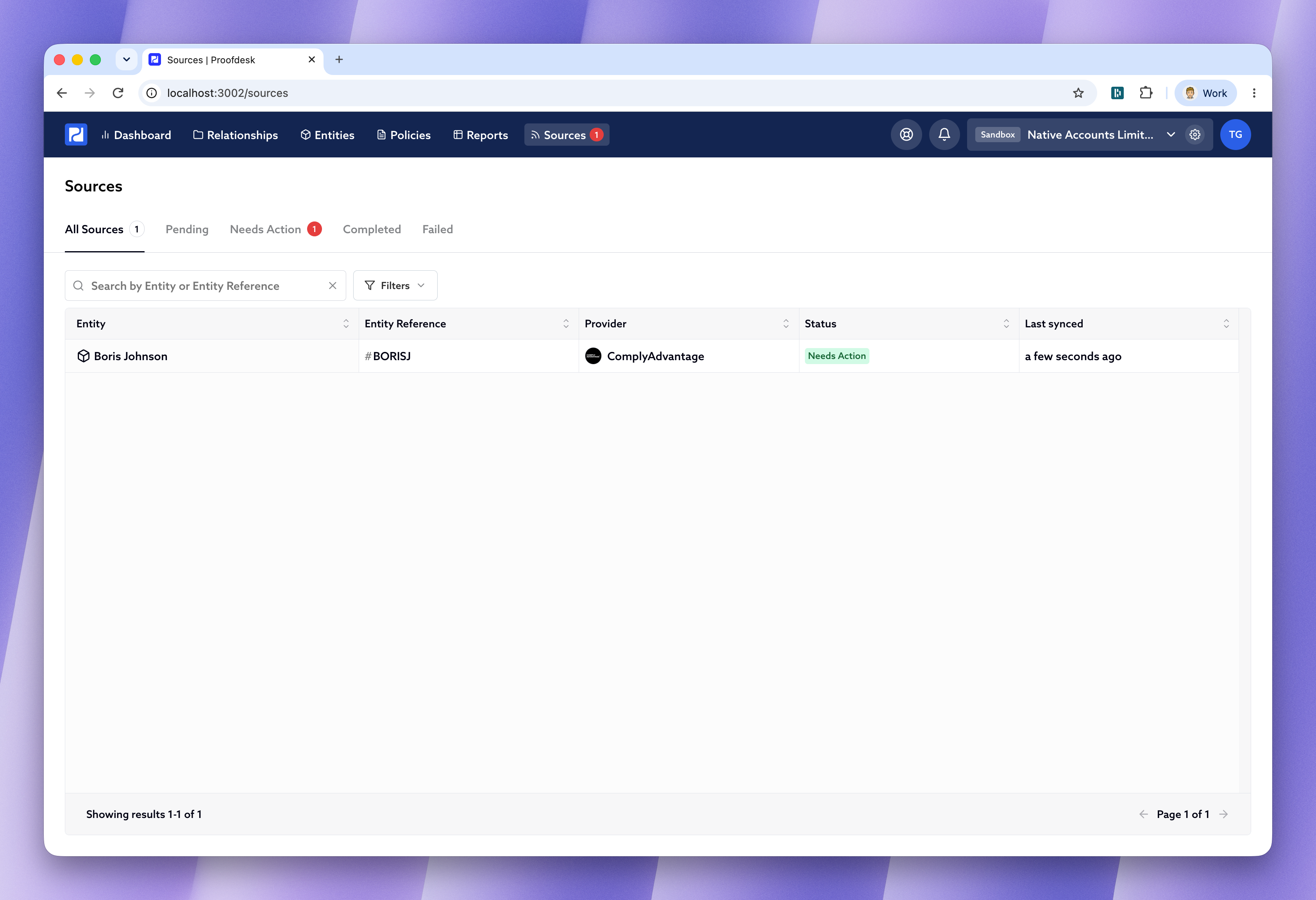
Cases move through a few statuses:
-
Pending - the provider is still running the search. For these screening providers this is usually only a few seconds.
-
Needs Action - the results are in and something needs your attention, such as reviewing a potential match or copying the outcome onto the entity.
-
Completed - there's nothing outstanding.
-
Failed - something went wrong. Start the case again, or remove it from Proofdesk.
If ongoing monitoring is switched on and the provider later flags a new potential match, the case moves from Completed back to Needs Action, and the notification reappears.
The menu on a case lets you Remove from Proofdesk , which unlinks it from the entity without deleting it in the provider. On a completed case you can also Revert to Needs Action if you need to copy the results across after all. Where Proofdesk has a direct link, the same menu includes Open in the provider.