
Dashboard, Lists, and Searching
The Dashboard and List views in Proofdesk give you an overview of your organisation’s activity showing what’s in progress, what’s changed recently, and where attention might be needed next.
The Dashboard
Your dashboard gives a live summary of your organisation’s key compliance data. It updates automatically as you and your colleagues complete work in Proofdesk.
The dashboard works like your team’s to-do list as it highlights what’s in motion so you can see where progress is being made and where follow-up might be needed.
Relationship and Entity Lists
The Relationships and Entities pages display all of your organisation’s records in clean, searchable tables. They’re designed to help you quickly find, sort, and export the information you need without having to open each record individually.
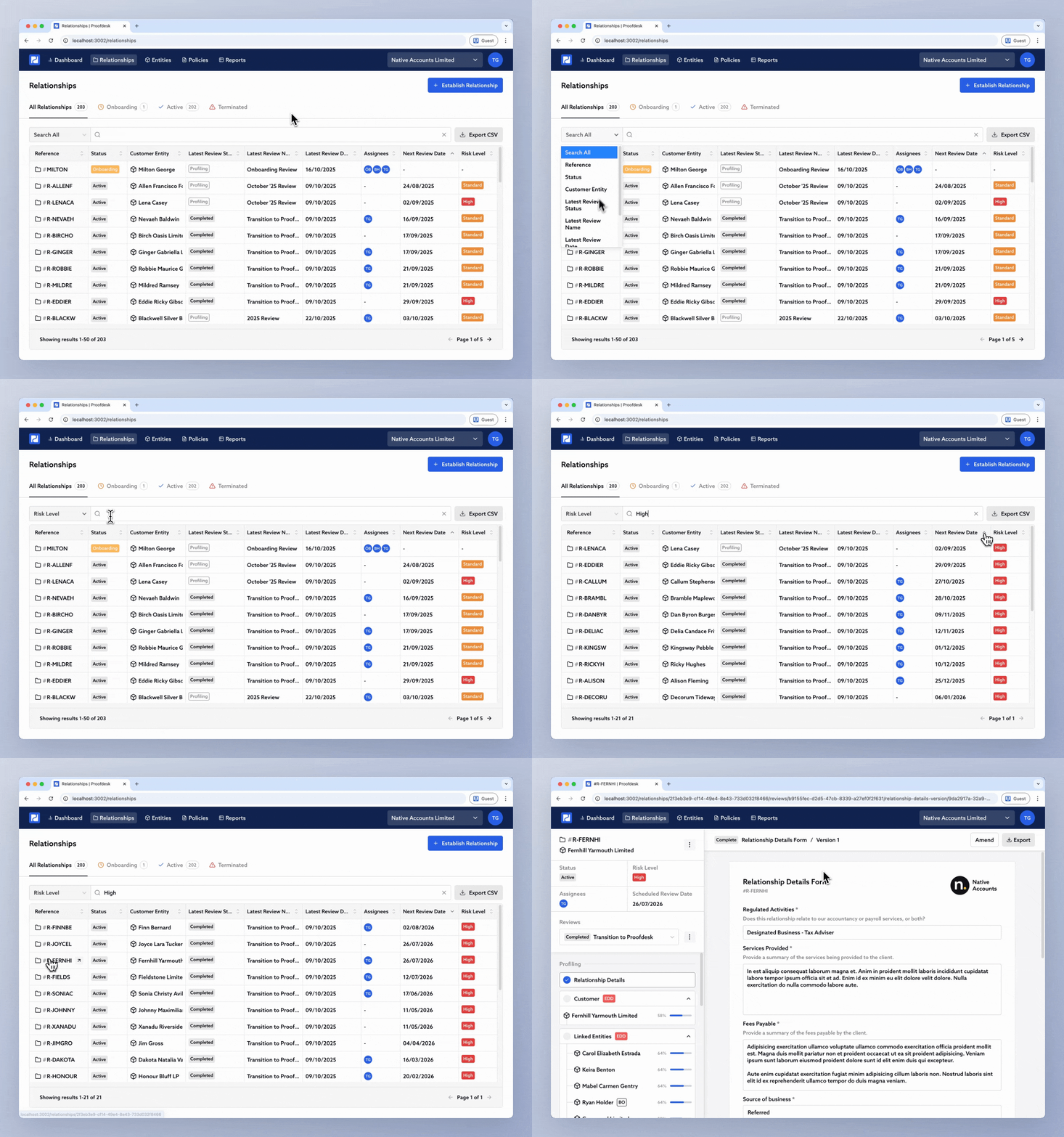
Searching
At the top of every list is a search bar that lets you find records instantly. Search is fuzzy, so you don’t need to type exact matches. Searching for “Blue Sk” will still find Blue Sky Limited. Next to the search bar is a filter dropdown that lets you target your search to a specific column (for example, Reference). By default, Proofdesk searches across all columns, but narrowing the filter makes it much easier to find what you’re looking for when the list is large.
Sorting
You can click any column heading to sort by that column. For example, sorting by Risk Level to group similar customers together, or Next Review Date to see which relationships are due soon. Each table shows 50 results per page, with navigation controls at the bottom to move through longer lists.
Exporting to CSV
If you need to share or analyse your data outside Proofdesk, you can export any list by clicking Export to CSV at the top of the table. The exported file includes all visible columns and respects any filters or sorting you’ve applied.