
How to Generate and Submit Your Statistical Return
All firms regulated by the FSA must submit their Statistical Return annually through STRIX (fsareturns.im), the FSA's data gathering platform. This guide explains how to use Proofdesk to generate your Statistical Return report and submit it to STRIX.
Proofdesk collects the required data throughout the year as you onboard customers and conduct reviews. The Statistical Return report pulls this information together and presents it in the format required by the FSA, and you can export it directly to STRIX using the XBRL format.
What is the Statistical Return?
The Statistical Return asks questions about your customer base, including how many customers you have, new customers, legal forms, principal activities, whether customers have been met face to face, source of business, use of introducers, and nationality and residency of UBOs. The questions vary slightly depending on your licence type, with TCSPs answering different questions to Designated Businesses.
The FSA publishes a guidance document to help you understand what each question requires.
Important: The report runs as at 31st December. Any changes made in Proofdesk after this date won't be reflected in the report figures, so you'll need to manually adjust for any data added after that date.
Generating Your Statistical Return Report
To generate your Statistical Return report:
1. Go to Reports → + Generate Report
2. Select the current year's Statistical Return report from the list (e.g., "Statistical Return 2025")
3. Enter 31st December as the As at date
4. Click Generate Report
The report typically runs in under 15 seconds, even for large customer-bases. Once generated, you'll see the report with answers to each question in the Statistical Return.
Understanding Report Versions
Proofdesk provides two versions of the Statistical Return report:
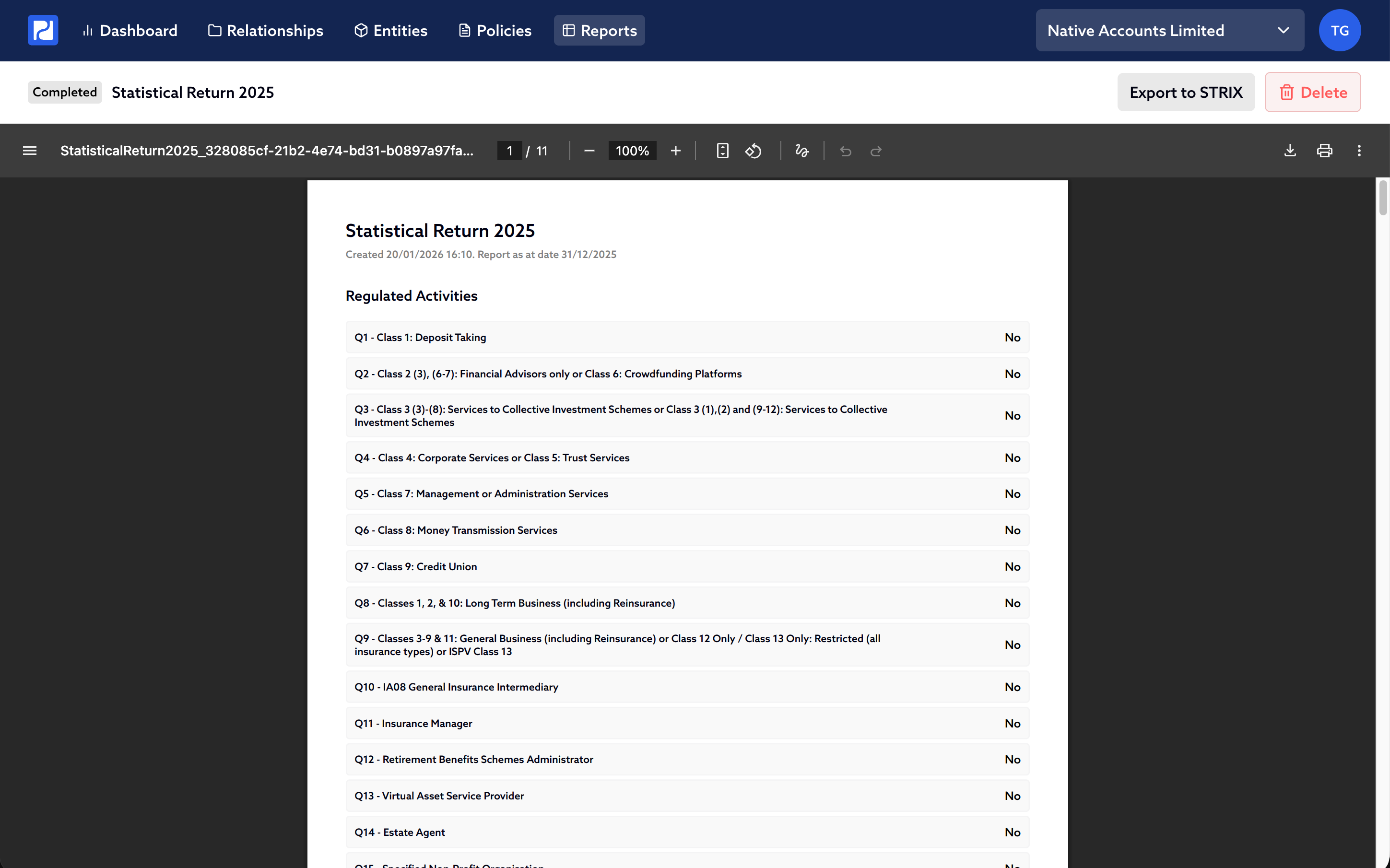
Standard Version
The standard version shows answers to each question in the Statistical Return. This is the version you'll use when exporting to STRIX or reviewing your figures.
Analysis Version
The Analysis version breaks down exactly which relationships and entities contribute to each total. This is particularly useful for:
Verifying Proofdesk's calculations
Identifying where data might be missing
Tracking down specific relationships or entities that make up each figure
Providing a record of the calculations you rely on if the FSA question your submission or your answers
Recommendation: Work through the Analysis version looking for "unknown" entries. These highlight where you haven't got all the necessary data in Proofdesk and will need to manually adjust figures in STRIX.
Exporting Your Report to STRIX
Instead of manually typing answers into the STRIX interface, you can export your data from Proofdesk and upload it directly to STRIX using the XBRL format. This saves significant time and eliminates manual mistakes.
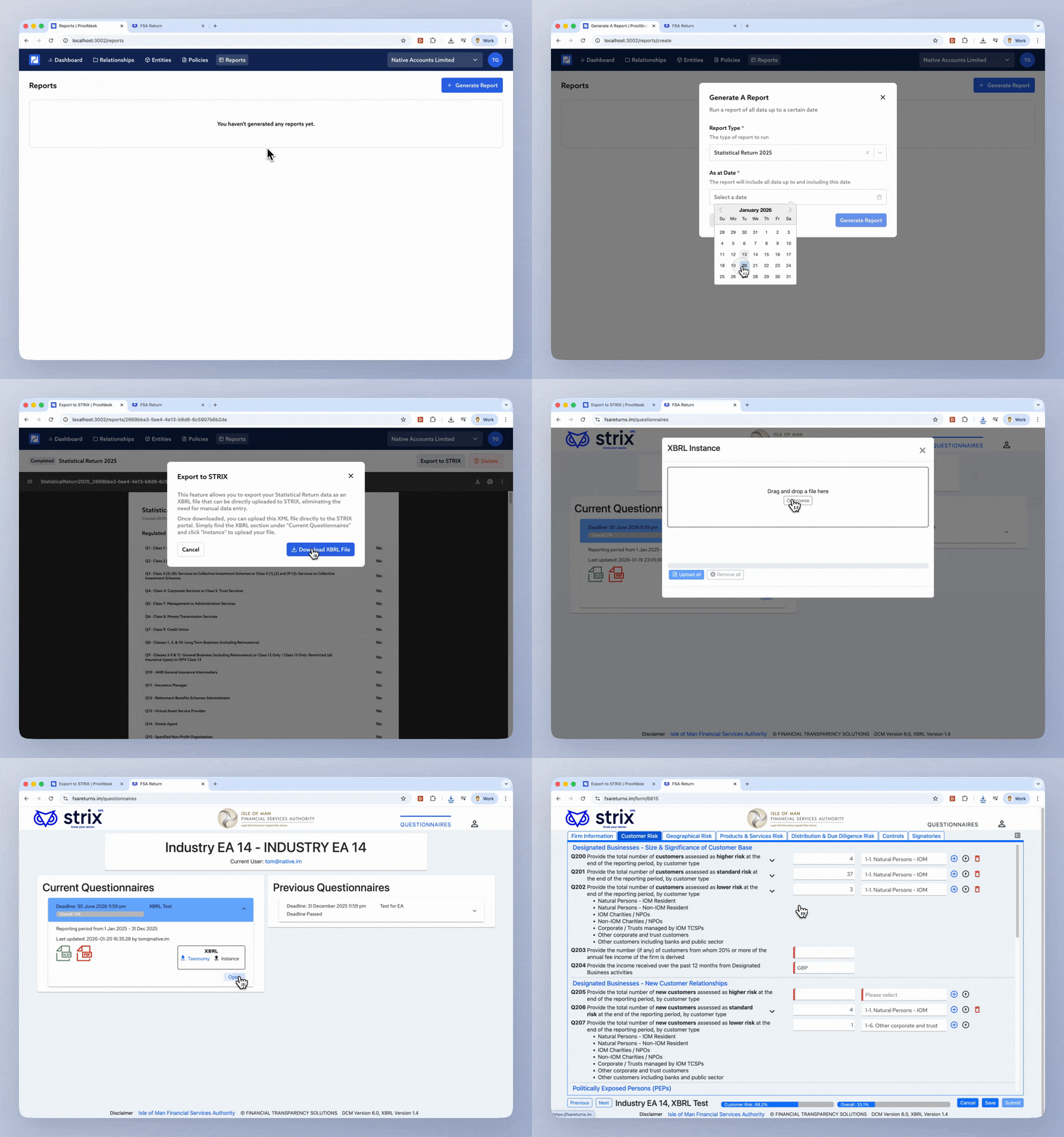
Step 1: Export from Proofdesk
1. Generate the standard Statistical Return report (see instructions above)
2. In the report toolbar, click "Export to STRIX"
3. A modal will appear with instructions and a download button
4. Click the download button to download the .xml file
The exported file contains all the data from your Statistical Return report in the XBRL format required by STRIX.
Step 2: Upload to STRIX
1. Log in to STRIX (fsareturns.im) using your firm's login details
2. Navigate to the Current Questionnaires page
3. Click "Instance" under this year's return
4. Select the .xml file you downloaded from Proofdesk
5. Wait for the upload to complete
Once the upload is complete, open the return to see that your answers have been pre-populated from the Proofdesk data.
Step 3: Review and Submit
After uploading, you should:
1. Review all answers - Check that the pre-populated data looks correct
2. Fill in any gaps - Some questions may not be answered by Proofdesk (see Data Gaps section below)
3. Manually adjust figures - For any data added to Proofdesk after 31st December, or for missing data identified in the Analysis version
4. Submit - Once you're satisfied with all answers, submit the return through STRIX
If you need to start again, there's a button in the top right of the return in STRIX that allows you to clear it and upload a new file.
Handling Missing Data
Proofdesk doesn't answer every question in the Statistical Return. Some questions, such as those about staff training, aren't relevant to what Proofdesk captures. There may also be gaps in areas where Proofdesk should support the return but currently doesn't, such as questions about Nominee Shareholders. These issues usually arise from new or updated questions that rely on data not yet captured by Proofdesk. Where this arises, we work quickly to introduce the ability to capture the necessary data.
What you need to do:
Review the Analysis version to identify where data might be missing
Look for "unknown" entries in the Analysis version - these indicate missing data
Manually answer any questions in STRIX that weren't populated from Proofdesk
Manually adjust figures in STRIX for any gaps or data added after 31st December
Tips and Best Practices
1. Run the report early: Generate the report well before the submission deadline to give yourself time to review and validate the data
2. Use the Analysis version: Always review the Analysis version to understand how Proofdesk has calculated each figure and identify any missing data
3. Check for "unknown" entries: Work through the Analysis version systematically, looking for "unknown" entries which indicate missing data
4. Validate against your records: Compare the Proofdesk figures against your own records to ensure accuracy
5. Allow time for manual adjustments: Factor in time to manually adjust figures in STRIX for any gaps or data added after 31st December
6. Review before submitting: Always review all answers in STRIX before submitting, even if they've been pre-populated from Proofdesk
7. Keep a record: Download the PDF of your Statistical Return report and save a copy of your final submitted return for your records
Getting Help
If you have questions about using the Statistical Return report or exporting to STRIX, please don't hesitate to contact us. We're here to help ensure your submission goes smoothly.
For questions about the Statistical Return itself or what data is required, refer to the FSA's guidance document.