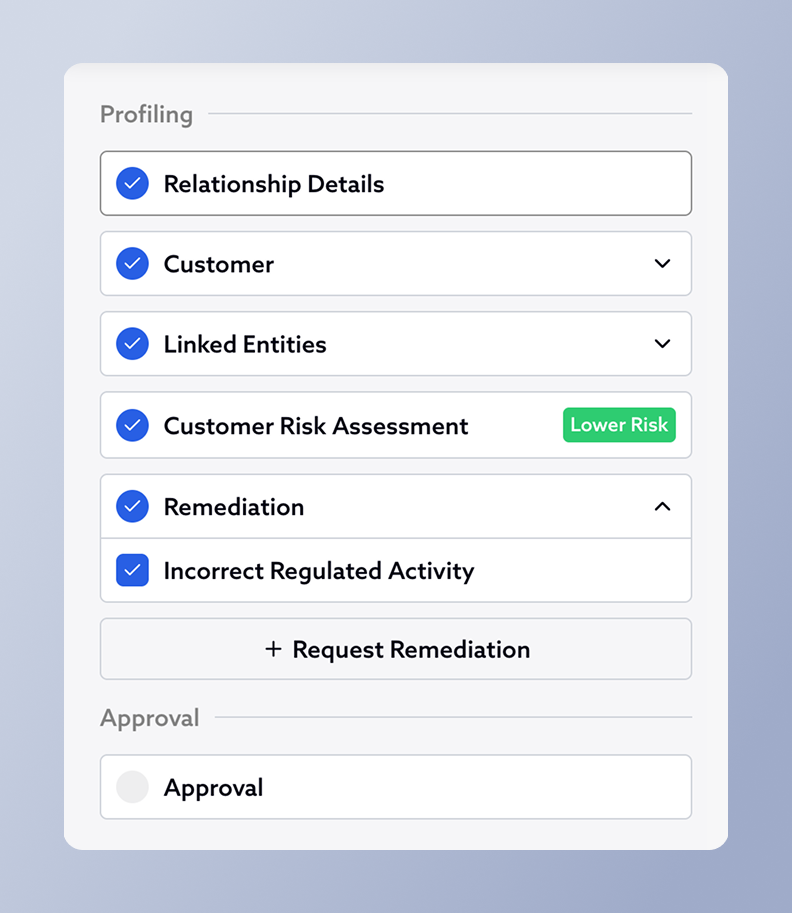
Using Remediations
Remediations are a way of optionally requesting changes to the Profiling forms after the relationship has been submitted for approval.
When a relationship is submitted for approval, Profiling forms such as the Relationship Details form and the Customer Risk Assessment form are locked to protect the audit trail in the system.
If a change needs to be made to the profiling forms before the Approval form is signed, a remediation can be opened to allow this.
Starting a remediation
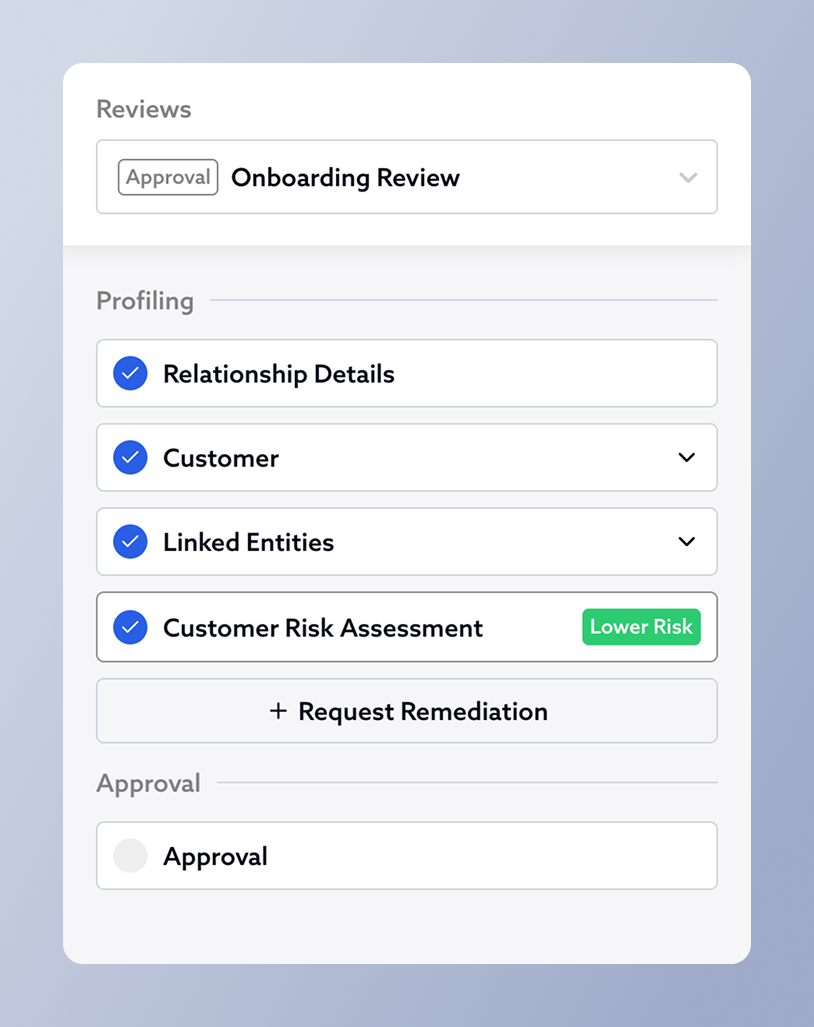
When an approval is in progress, click "Request Remediation" in the Relationship sidebar.
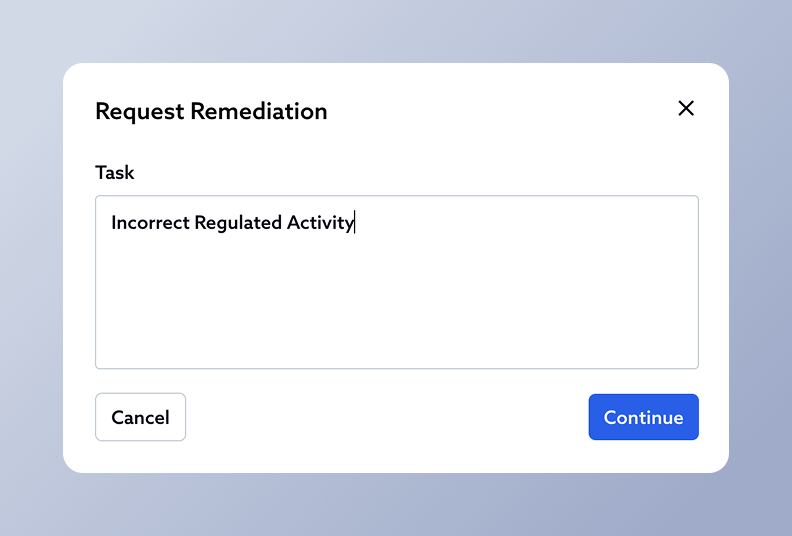
This will prompt you to enter a description for the remediation, specifying what needs to change. After entering a description, click "Continue".
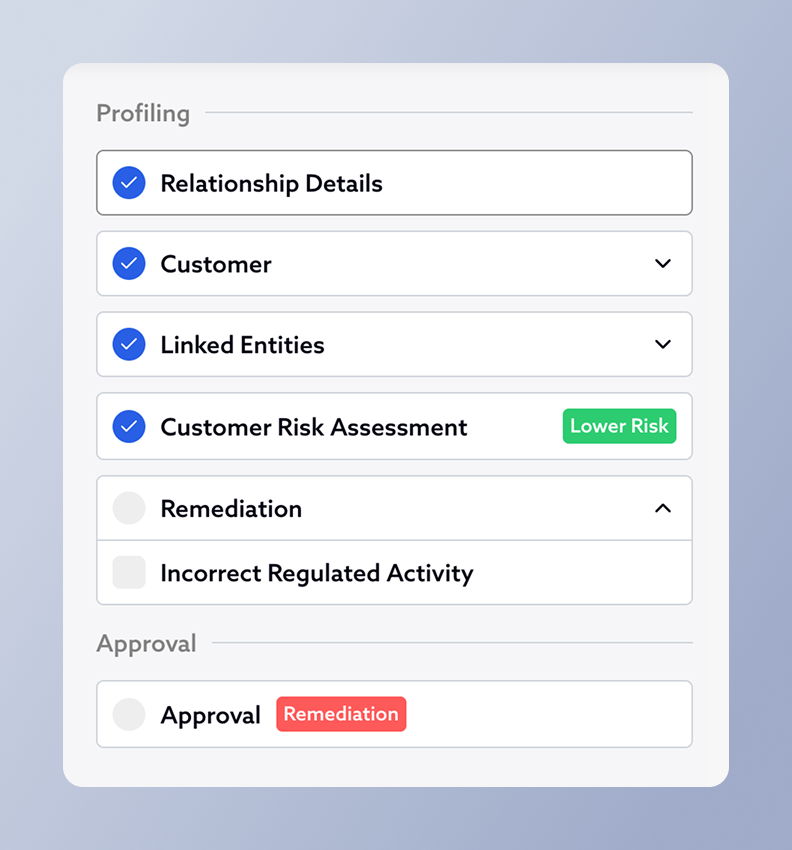
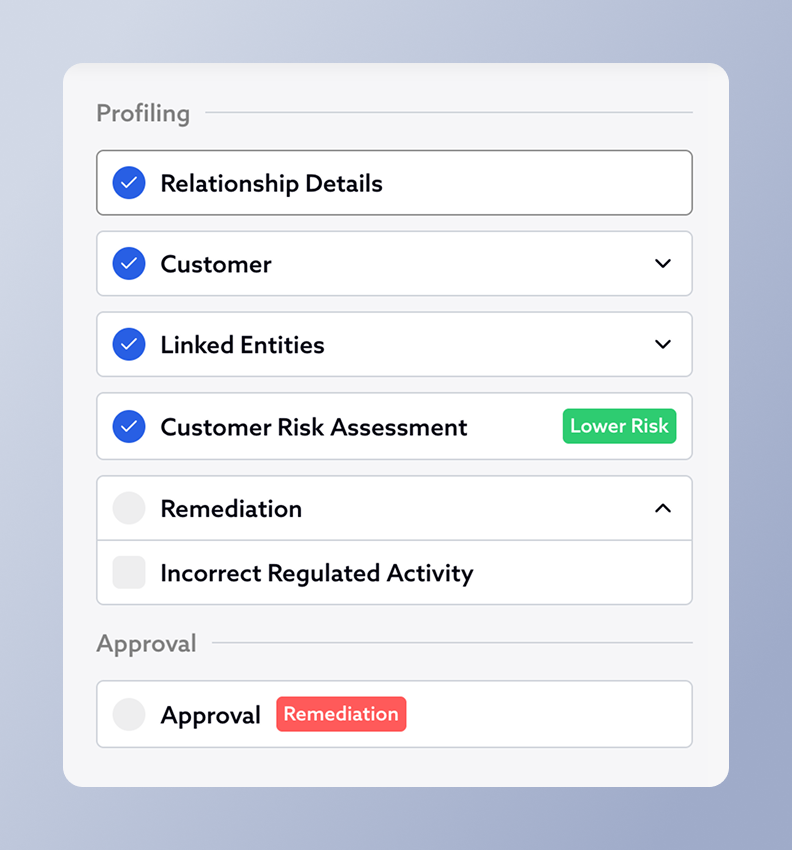
A remediation is now active. The Profiling forms will allow editing to take place in the usual way. At this point the approval form will not be editable, and will be marked with a red "Remediation" tag in the relationship sidebar.
Finishing a remediation
Once the remediation has been completed, click the remediation in the "Remediation" section in the Relationship sidebar
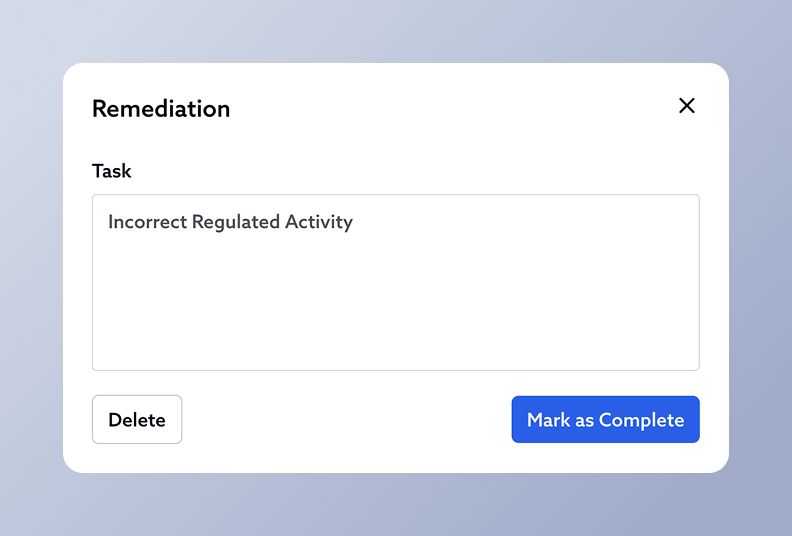
Click "Mark as Complete". If the remediation is no longer required, the "Delete" button may optionally be clicked instead.
Now the Profiling forms will once again not allow editing to take place. The approval form becomes editable and signable in the usual way, and will no longer be marked with a red "Remediation" tag.